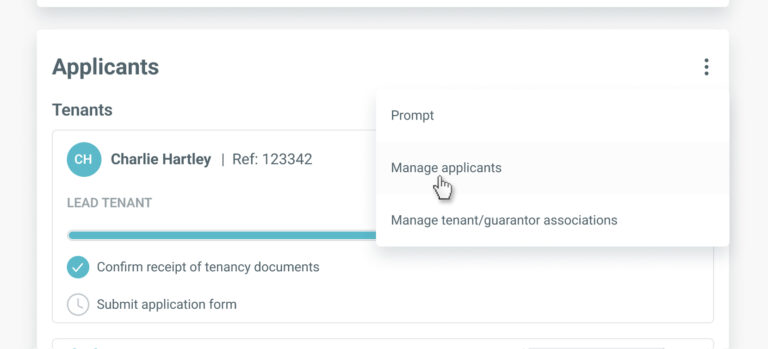
To add a new tenant, go to the ‘Applicants’ section on the tenancy record and select ‘Manage applicants’ from the menu.
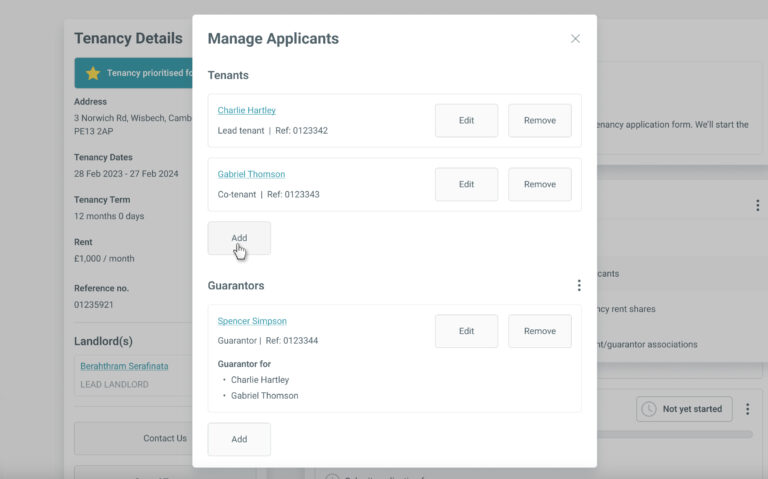
In the ‘Manage Applicants’ screen, click the ‘Add’ button within the ‘Tenants’ section.
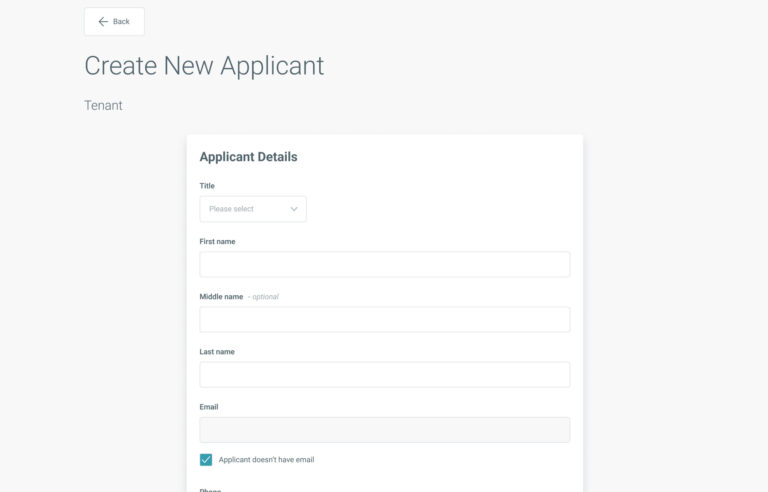
You’ll be directed to the ‘Add applicant’ screen for tenants.
Enter all the required information and click ‘Create applicant’.
If when creating the tenancy, you selected to apply Anti-Money Laundering (AML) checks to the tenancy, any new tenants added will also be subject to an AML check.
You can add requests for a reference check or other Know Your Customer checks (such as Right To Rent) when adding the tenant here too, if your branch is enabled for these services.
The new tenant will now appear in the ‘Applicants’ section of the tenancy record.
By continuing to browse the site you are agreeing to our use of cookies
Are you boxing clever yet?
Book a demo
Find out how BOX can help you save time, reduce admin and let properties faster.