
View Tenancy
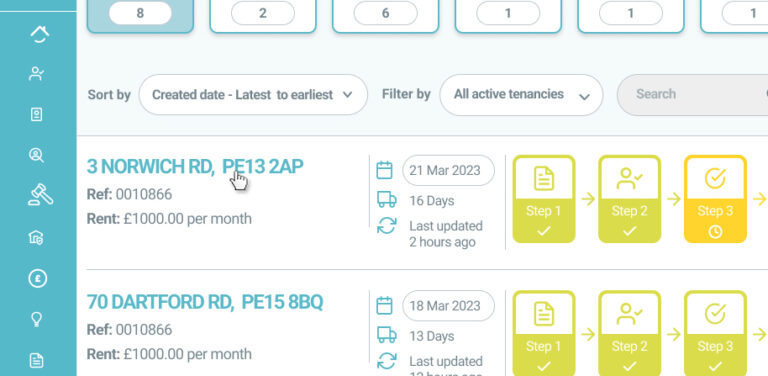
You can access an overview of each tenancy you create on BOX by clicking on the tenancy address in your dashboard view.
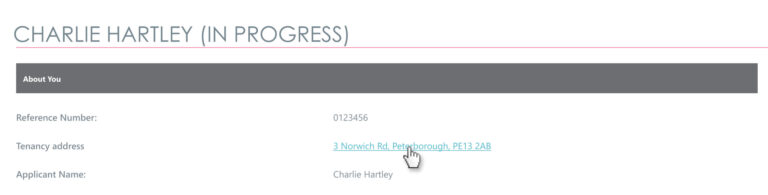
You can also access the tenancy record from within an applicant’s reference record by clicking on the tenancy address.
The tenancy record gives you a comprehensive overview of the key information relating to the tenancy.
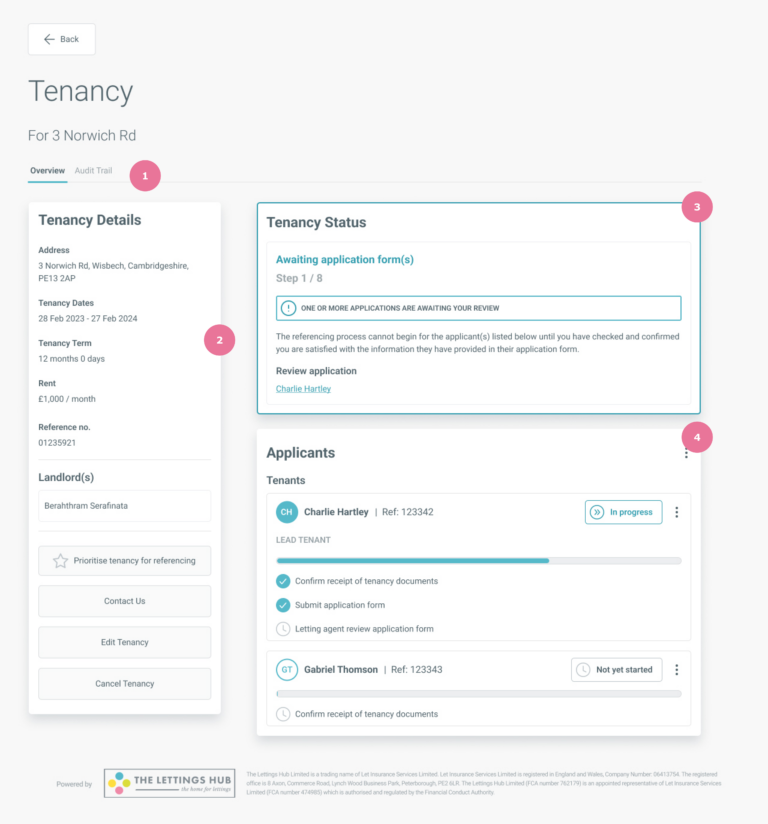
1. Tenancy Tabs
Use the tabs to switch your view of the tenancy information. The tabs available will depend on which products and services are enabled for your branch.
The ‘Overview’ tab will provide a summary view of the tenancy.
The ‘Audit Trail’ tab will display the record of key actions relating to the tenancy including any changes and progression through the BOX steps.
2. Tenancy Details
The core details relating to the tenancy are displayed here including the property address, tenancy dates/term, current rental value and the lead landlord associated with the property.
At the bottom of this section, you can access buttons to manage the tenancy:
Prioritise tenancy for referencing – Reference checks for all tenants and guarantors on this tenancy will be prioritised to return the results as quickly as possible for you.
Contact Us – Open the contact form to send us a message.
Edit Tenancy – Make limited changes to the tenancy details.
Cancel Tenancy – If the tenancy is no longer proceeding, you can cancel the tenancy here.
3. Tenancy Status
Here you’ll find a text description explaining which step of the BOX journey the tenancy is at and exactly what is happening or need to happen in order to complete this step.
If there are any actions that you need to take, they will be clearly displayed here with instructions.
4. Applicants
Here you can see all tenants, guarantors, relevant persons and permitted occupiers associated with the tenancy. It will also provide you with a detailed view of exactly which actions an applicant has completed at each step and how many they have left to go. From here you can also view and manage the applicants as well as sending additional prompts if you wish to encourage them to complete their tasks sooner.